Welcome! This guide will help you set up your first show and start receiving tips in minutes.
Step 1: Choose your organization type
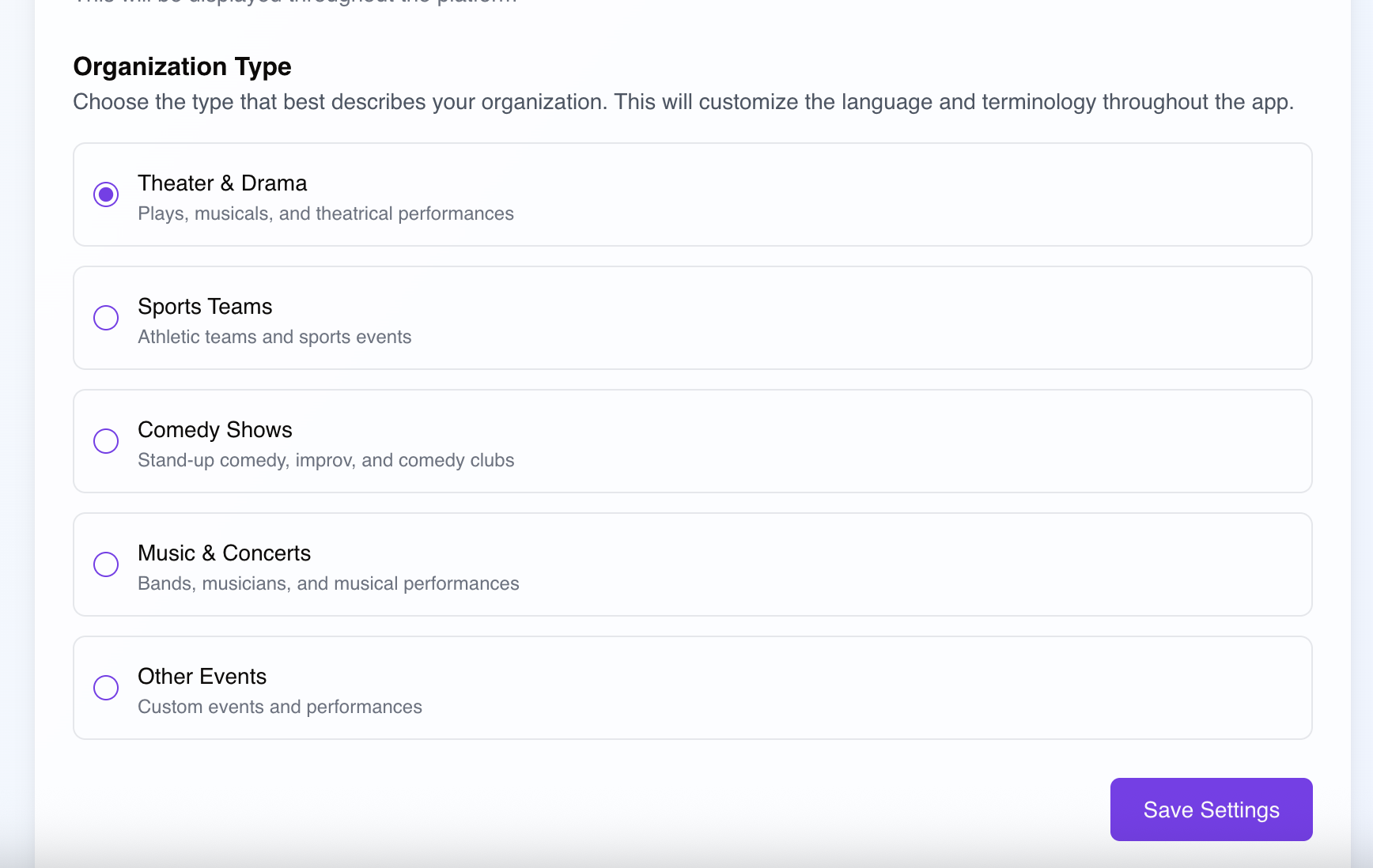
Sign up for free and choose your organization type:
- **Theater & Drama:** For plays, musicals, and stage productions
- **Sports Teams:** For athletic teams and sporting events
- **Comedy Shows:** For stand-up and improv performances
- **Music & Concerts:** For bands and musical performances
Step 2: Choose Your Plan
Select the pricing option that works best for you:
Pay-Per-Show ($29 per show)
- Perfect for occasional events
- No commitment required
- Credits never expire
Annual Plan ($169 per year)
- Unlimited shows
- Best value for regular use
- Cancel anytime
Step 3: Create Your First Show
From your dashboard, click "Create New Show" and enter:
- **Show Name:** The title of your production or event
- **Show Date:** When your event takes place
- **Description:** Brief details about your show (optional)
- **Poster Image:** Upload promotional artwork (optional)
**Note:** If you are using Pay-Per-Show Shows automatically expire after 60 days to keep your data clean and organized.
Step 4: Add Your Performers
Invite cast members or team members to join your show:
1. **Send Invitations:** Enter performer emails and send invitations. They'll receive a link to create their profile.
2. **Performer Setup:** Each performer adds their:
- Professional headshot
- Bio and role information
- Payment links (Venmo, CashApp, PayPal)
3. **Organize Your Cast:** Drag and drop to reorder performers in your preferred sequence.
Step 5: Get Your QR Code
Your unique QR code is automatically generated and ready to use:
- **Download:** Save the high-resolution QR code image
- **Share:** Post on social media or your website
🎭 Performer Engagement
Encourage performers to add compelling bios and professional headshots. Complete profiles receive significantly more tips.
📊 Analytics Insights
Check your analytics regularly to understand audience behavior. Use insights to optimize QR code placement and timing.
🔄 Show Management
You can update show details, add or remove performers, and adjust settings at any time during your show.
Need more help? Check out our FAQ or contact support at support@tiplify.io